
Gestión de Cargas: crear, presupuestar y actualizar cargas
Crea una carga, define el precio con conceptos y actualízala a medida que cambia el trabajo.
What you'll learn from this guide
- Crear una carga y componer el precio con artículos y recargos
- Obtener un precio sugerido antes de comprometerte con un trabajo
- Configurar cargas que se repiten con una periodicidad
- Editar y duplicar una carga después de crearla
- Planificar, facturar y subcontratar una carga desde las acciones disponibles
Para qué sirve
Una carga es la orden de transporte de un trabajo aislado o de una serie recurrente de trabajos. Registra el cliente y el contrato, la mercancía, las tareas de carga y de descarga, y los conceptos que componen el precio.
Casi todos los registros operativos y financieros de Meight se crean a partir de una carga. En cuanto la carga existe, puedes planificarla en una vuelta, presupuestarla, subcontratarla, facturarla o duplicarla.
Creas una carga cuando un cliente pide un transporte, cuando reservas trabajo nuevo o cuando una reserva necesita una orden estructurada en la plataforma.
El estado de planificación
Cada carga tiene dos estados al mismo tiempo.
El estado de planificación muestra si el trabajo ya se ha programado. Sigue las tareas de la carga, así que cambia cuando las planificas o las quitas de la planificación, y no cuando cambia la carga en sí.
- No planificado — Ninguna tarea de la carga tiene una vuelta asociada.
- Parcialmente planificado — Al menos una tarea de la carga tiene una vuelta asociada, pero no todas.
- Borrador planificado — Una tarea de la carga tiene una vuelta en borrador asociada.
- Completamente planificado — Todas las tareas de la carga tienen una vuelta asociada.
El estado del ciclo de vida
El estado del ciclo de vida muestra en qué punto está el trabajo en el lado comercial. Empieza cuando se reserva el trabajo y termina cuando la carga se factura o se cancela.
- Reservado — La carga está comprometida con el cliente.
- Completado — La carga se ha realizado. Pasa de Reservado a Completado en cuanto todas sus tareas están programadas.
- Facturado — La carga tiene una factura asociada en estado final. Es un estado terminal. Factura borrador significa que la factura sigue en borrador, y Facturado externo significa que la carga se facturó en un sistema externo, por lo que no se crea ningún documento de cuentas por cobrar.
- Cancelado — La carga se canceló con un motivo. Es un estado terminal.
El ciclo de vida también va hacia atrás. Completado vuelve a Reservado, y Facturado vuelve a Completado si se cancela la factura o si se elimina un documento de cuentas por cobrar en borrador. Una vez facturada la carga, ni la carga ni sus conceptos se pueden editar.
Encontrar y previsualizar una carga
Tus cargas están en Cargas, en la página Reservas. Cada fila muestra el ID de la carga, el estado, el cliente y el código postal, la ciudad y el país de carga, y la lista se puede filtrar y buscar. Presupuestar, Múltiples cargas y Disponibilidad de conductores están en la esquina superior derecha, junto a Crear nuevo.
Cada fila tiene un icono de bandera, un icono de ojo y un menú de tres puntos.
Qué muestra la vista previa de la carga
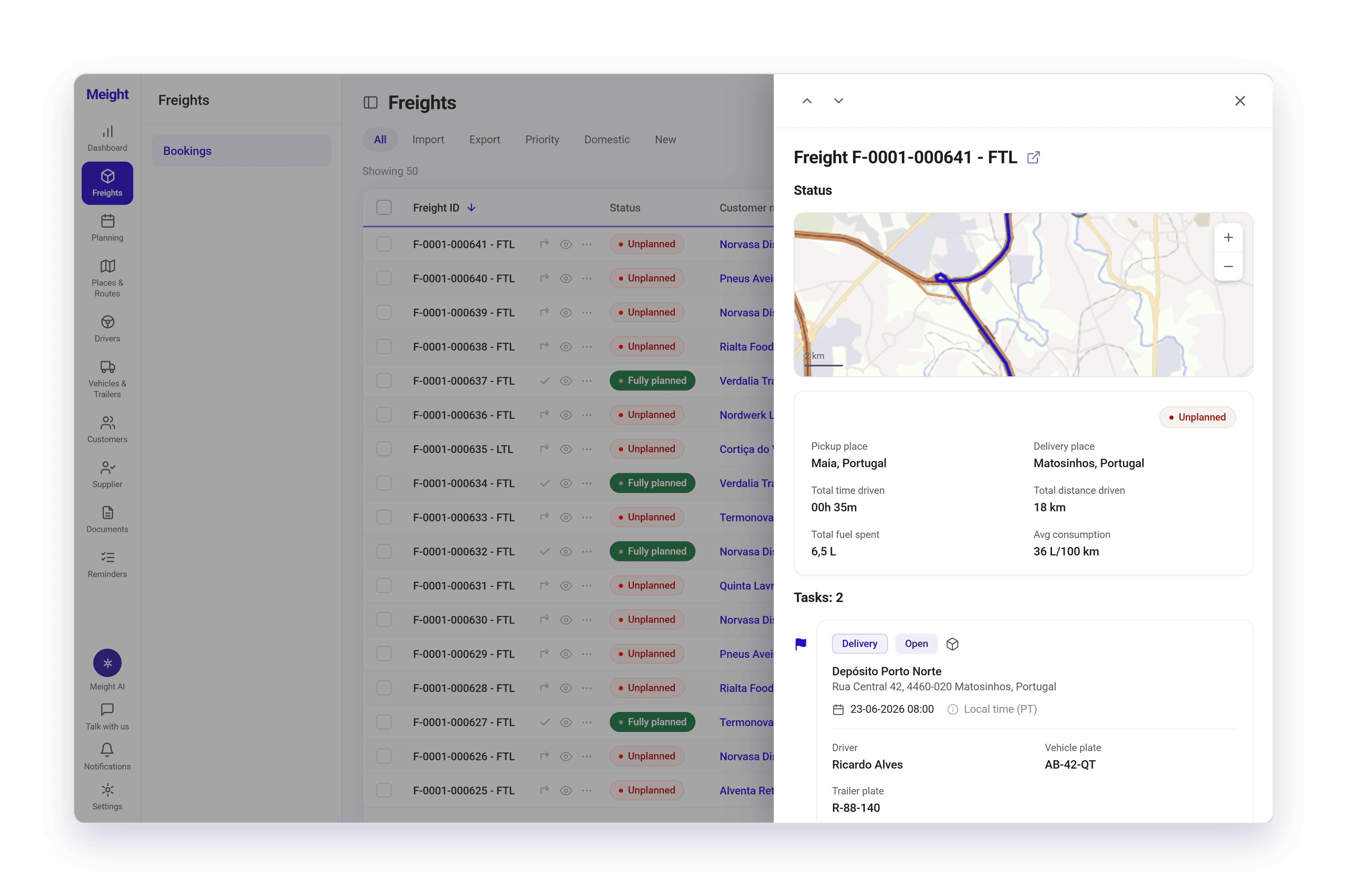
El icono de ojo abre una vista previa de solo lectura en el lado derecho, que es la forma más rápida de consultar una carga sin salir de la lista. Muestra:
- El ID de la carga, con un control para abrir la carga completa y flechas para recorrer la lista
- La ruta en el mapa
- El estado de planificación, los lugares de carga y de descarga, el tiempo y la distancia totales recorridos, el combustible gastado y el consumo medio
- Cada tarea, con su tipo y estado, el lugar y la dirección, la fecha y la hora en hora local, y el conductor, la matrícula del vehículo y la matrícula del remolque
Seleccionar la propia fila, o Ver en el menú de tres puntos, abre la página completa de la carga. Detalles de la carga contiene las tarjetas Información del cliente, Información general, Conceptos, Tareas, Artículos de carga y Requisitos, con una columna de acciones en el lado derecho. Adjuntos contiene los documentos adjuntos a la carga.
Cómo crear una carga
Abre la lista de cargas
Abre Cargas y ve a Reservas. La lista muestra tus cargas existentes con su estado.
Empieza una carga nueva
Selecciona Crear nuevo en la esquina superior derecha. El formulario se abre con las tarjetas Información del cliente, Información general, Conceptos, Tareas, Artículos de carga y Requisitos.
Elige el cliente
En Información del cliente, selecciona el cliente. Contrato, Dirección de facturación, Dirección fiscal y NIF quedan disponibles a continuación.
Define los datos generales
Información general contiene Nombre de la carga, Supervisado por el equipo, Concedido al equipo, ID externo y Frecuencia. Todos son opcionales. Definir una Frecuencia hace que la carga sea recurrente, lo que se explica más adelante.
Compón el precio
En la tarjeta Conceptos, selecciona Añadir y después Añadir artículo o Añadir recargo. Se abre un panel lateral con los campos Artículo, Precio unitario, Cantidad, Categoría de tipo de IVA, Tipo de IVA, Descuento y Descripción. Selecciona Añadir coste para incluir el concepto.
Añade el lugar de carga
En la tarjeta Tareas, rellena la tarea 1 con el lugar de carga y la hora de llegada, y añade observaciones si las necesitas. Cada tarea empieza con el estado Abrir.
Añade la descarga y las paradas siguientes
Rellena la tarea 2 con un lugar de descarga y la hora. Selecciona Añadir tarea para más cargas o descargas, y aparece una fila nueva cada vez.
Registra la mercancía
En la tarjeta Artículos de carga, selecciona Añadir para la mercancía transportada, que se suma a la carga total. La tarjeta Requisitos, debajo, es opcional.
Guárdala
Selecciona Guardar carga. Meight valida los campos obligatorios y guarda la carga con sus conceptos.
La carga aparece en la lista como No planificado, es decir, está reservada pero aún no se ha planificado en una vuelta. Si definiste una Frecuencia, las cargas futuras de la recurrencia se crean automáticamente.
Cómo funcionan los conceptos
El precio de una carga viene de los conceptos de la tarjeta Conceptos, y no de un único campo de precio. Cada concepto tiene un Precio unitario, una Cantidad, una Categoría de tipo de IVA Normal o Reducido, un Tipo de IVA, un Descuento opcional y una Descripción opcional.
Hay dos tipos. Un artículo es el artículo o servicio transportado, elegido del catálogo de artículos, y una carga solo puede tener uno. Un recargo es un coste adicional sobre el artículo, por ejemplo un recargo por combustible, y una carga puede tener todos los que hagan falta. Un recargo nuevo sugiere el tipo de IVA ya aplicado al artículo.
El Precio y el Precio con IVA de la tarjeta Información general son la suma de todos los conceptos, así que se actualizan cada vez que se añade, cambia o elimina un concepto.
Después de guardar la carga, el icono de verificación de un concepto abre Verificar precio del contrato. Compara el precio unitario actual con el precio calculado a partir del contrato del cliente, y puedes mantener el precio actual, aplicar el precio calculado o definir un precio personalizado.
Cómo presupuestar una carga antes de crearla
La herramienta de presupuestos te da un precio sugerido para un transporte que aún no se ha reservado, calculado a partir de los lugares de carga y de descarga, los costes y la rentabilidad estimados, y cargas similares anteriores.
Presupuestar no crea ninguna carga ni cambia datos. Úsala cuando un cliente pregunta cuánto costaría un transporte, cuando estás decidiendo si un trabajo es rentable o cuando quieres comparar una petición con cargas que ya has hecho.
Abre la herramienta de presupuestos
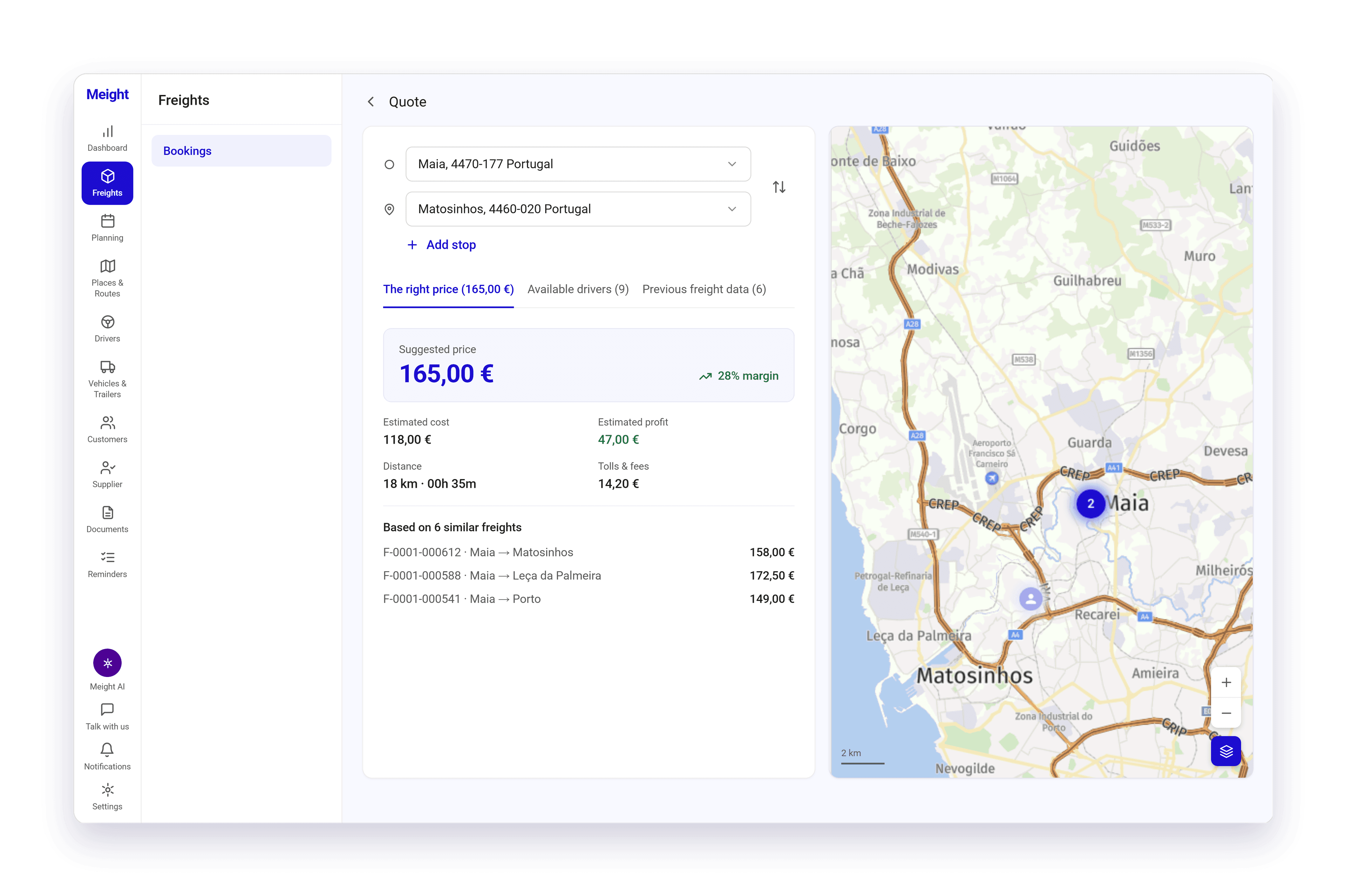
Abre Cargas, ve a Reservas y selecciona Presupuestar en la esquina superior derecha. La herramienta se abre con los campos de carga y de descarga a la izquierda y un mapa a la derecha.
Define la ruta
Introduce el lugar de carga en el primer campo y el lugar de descarga en el segundo. El mapa traza la ruta entre los dos.
Ajusta la ruta
Selecciona Añadir parada para una parada intermedia, o usa el control de inversión entre los campos para intercambiar el punto de partida y el destino. La ruta y el precio se van actualizando.
Lee el precio
La pestaña Precio recomendado muestra el precio sugerido y su margen, y después el coste estimado, el beneficio estimado, la distancia y el tiempo de conducción, y los peajes y tasas. Debajo aparecen las cargas en las que se basa la estimación, con sus IDs, rutas y precios.
Consulta los datos de apoyo
Conductores disponibles muestra los conductores cerca de la ruta, y Datos de cargas anteriores compara el presupuesto con cargas ya realizadas. Cada pestaña muestra cuántos resultados tiene.
Cuando el cliente acepta el precio, la carga se crea por separado.
Cómo funcionan las cargas recurrentes
Definir una Frecuencia en una carga, por ejemplo todos los días o todas las semanas, la hace recurrente. Meight pasa a crear automáticamente las cargas futuras de la recurrencia, así que una ruta habitual solo hay que configurarla una vez. El filtro Recurrencia de la lista de cargas muestra qué cargas son recurrentes.
Cambiar la frecuencia te pide una confirmación primero. La nueva frecuencia se aplica a la carga que estás editando y a todas las cargas futuras de la recurrencia, y las cargas pasadas se quedan como están.
Quitar la frecuencia termina la recurrencia, y dejan de crearse cargas a partir de ella.
Cómo editar una carga
La edición se hace tarjeta a tarjeta en la página de la carga. Úsala para corregir un lugar o una hora, ajustar el precio o actualizar la mercancía cuando el cliente cambia el pedido.
Abre la carga
Abre Cargas, ve a Reservas y selecciona la fila de la carga, o selecciona Ver en el menú de tres puntos. Se abre en la pestaña Detalles de la carga.
Edita una tarjeta
Selecciona el icono de lápiz en la tarjeta, cambia lo que necesites y después selecciona Guardar en esa tarjeta. El cambio se guarda al momento, y Cancelar lo descarta.
Cambia el precio
En la tarjeta Conceptos, selecciona Añadir para un artículo o recargo nuevo, o usa el menú de tres puntos de un concepto para editarlo o eliminarlo. El Precio y el Precio con IVA siguen a los conceptos.
Comprueba un precio con el contrato
Selecciona el icono de verificación en un concepto. Verificar precio del contrato compara el precio unitario con el precio calculado a partir del contrato, y puedes mantener el precio actual, aplicar el precio calculado o definir un precio personalizado.
Cada tarjeta se guarda por separado, así que no hay un único guardado al final. Tus cambios se reflejan en la lista de cargas y en todo lo relacionado con la carga, para que las vueltas, las órdenes de compra y las facturas que dependen de ella usen los datos corregidos.
Una vez facturada la carga, ni la carga ni sus conceptos se pueden editar.
Cómo duplicar una carga
La duplicación crea una carga nueva a partir de una copia de una existente, con el cliente, la ruta, las tareas y la mercancía. Úsala cuando un cliente reserva el mismo transporte otra vez, cuando haces una ruta habitual o cuando un trabajo nuevo se diferencia poco de uno anterior.
Encuentra la carga que quieres copiar
Abre Cargas, ve a Reservas y selecciona el menú de tres puntos de esa fila.
Duplícala
Selecciona Duplicar. Se abre un formulario de carga nueva, ya rellenado a partir del original. Duplicar también está disponible en Otras acciones en la página de la carga.
Cambia lo que sea diferente
Ajusta las fechas, los lugares, la mercancía o lo que haga falta. Todos los valores rellenados se pueden cambiar.
Guárdala
Selecciona Guardar carga. La copia se guarda como una carga nueva.
La copia aparece en la lista como No planificado y el original queda intacto. No se crea nada nuevo hasta que guardas.
Qué puedes hacer desde una carga
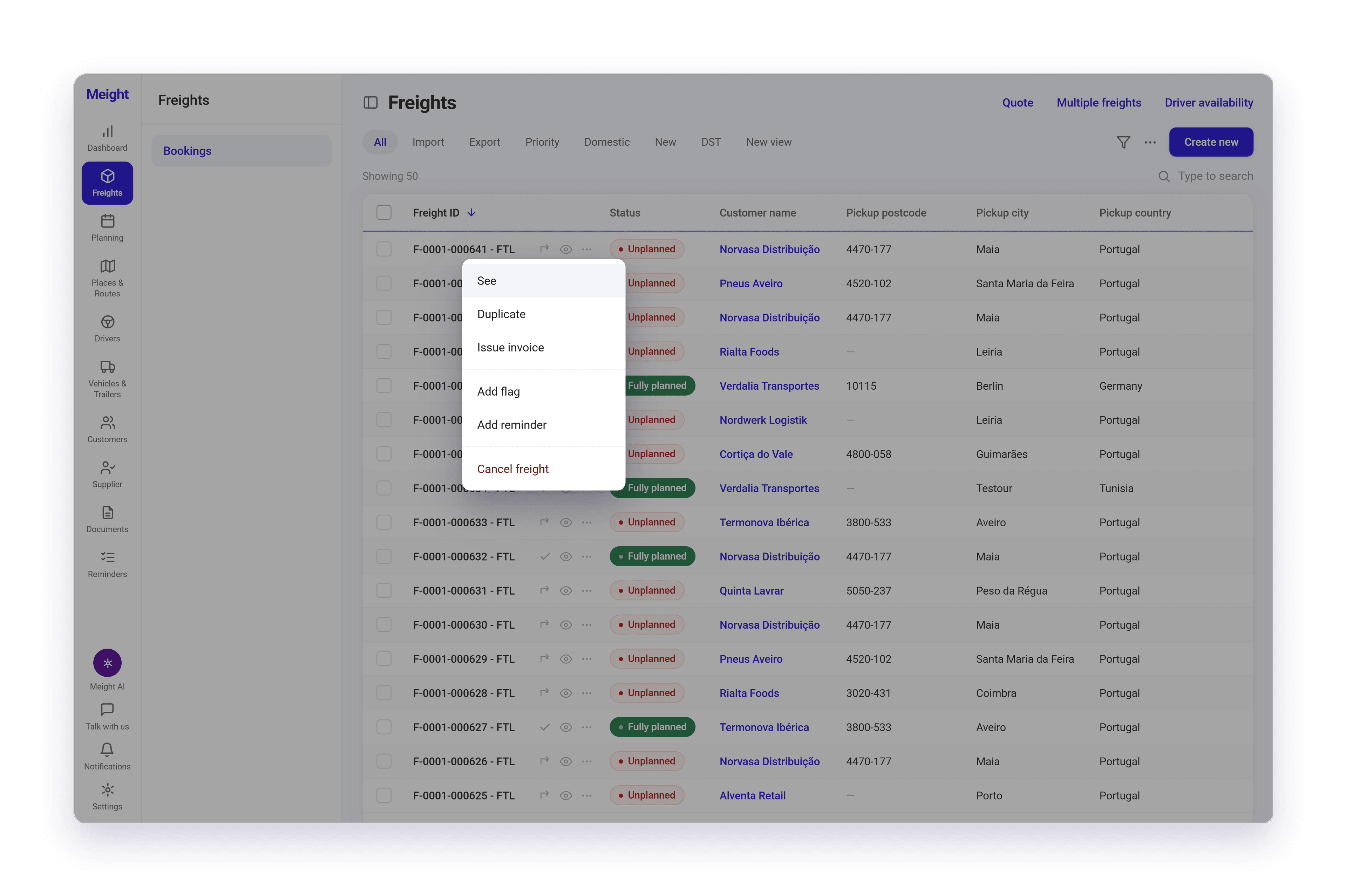
El menú de tres puntos de una fila tiene las acciones que puedes ejecutar sin abrir la carga. Ver la abre, Duplicar la copia, Subcontratación crea una orden de compra para ella, Añadir bandera la marca y Añadir un recordatorio crea un recordatorio asociado. El menú tiene además Copiar vuelta anterior, Planificar, Plan drop y Plan hook. Lo que no se aplica a la carga en su estado actual aparece en gris.
Al abrir la carga tienes el conjunto completo en la columna de acciones del lado derecho. El botón principal sigue el estado, así que Planificar aparece mientras la carga no está planificada o está parcialmente planificada, Marcar como completado en cuanto está planificada, y Generar factura en cuanto está completada. Cancelar carga está disponible mientras la carga sigue reservada y exige un motivo de cancelación.
En Otras acciones están Subcontratación, Añadir un recordatorio, Añadir bandera y Quitar bandera, y Duplicar.
Debajo, los documentos relacionados muestran las facturas, las órdenes de compra y los documentos eCMR relacionados con la carga, cada uno con la suma, los impuestos y el total con IVA incluido. Seleccionar uno lo abre.
¿Por qué importa esto para tu operación?
El precio de un trabajo suele quedar cerrado antes de que nada se escriba. Una cuenta hecha de cabeza, una tarifa que alguien recuerda de la última vez que se hizo el trayecto, una cifra acordada por teléfono. Presupuestar a partir de tus costes, tus peajes y lo que rindieron trayectos similares te da un precio que puedes explicar más adelante, al cliente o a quien acabe facturándolo.
Cuando sale la factura, el desglose ya está ahí. El transporte y los recargos se presupuestaron por separado cuando se reservó el trabajo, y cada uno se puede contrastar con el contrato del cliente antes de facturar, así que un cliente que pregunte por una línea de combustible tiene algo concreto que mirar en lugar de un total que tiene que creerse.
El trabajo habitual deja de volver a escribirse. Una ruta que se repite todas las semanas se configura una vez y los trabajos siguientes se crean solos, así que nadie anda copiando la carga de la semana pasada y corrigiendo las fechas.