
Profit & Loss: understanding your margins and what the operation cost to run
See what your operation billed and what it spent over any period of up to a year, and what margin is left between them.
What you'll learn from this guide
- What the profit and loss statement is and when you use it
- How to check whether a period covered its costs
- How to set the period you want, from a preset to a custom range
- How to follow revenue and expense across a full year, month by month
What is it used for
The profit and loss statement is the accounting view of your operation. It lives in the sidebar under Financial, on the Profit & loss page, and it shows how much revenue the operation billed, how much expense it carried, and what margin is left between them for the period you select.
You use it whenever you need to know whether a period covered its costs, without exporting figures to a spreadsheet.
The figures are read-only. Opening the page or changing the period never changes your data.
The two views
The same figures are offered in two views, and you can switch between them at any time.
- Summary — totals a chosen period in a single Amount column. Use it to check whether a period covered its costs.
- By month — spreads a chosen calendar year across twelve month columns plus a Total column. Use it to see how revenue and expense moved through the year.
Each view keeps its own selection, so moving to By month and back does not reset the period you had chosen on Summary.
What each tile shows
- Revenue — What the operation billed in the selected period, with the amount per kilometre repeated underneath.
- Expense — What the operation carried as expense in the same period, also with the amount per kilometre underneath.
- Margin — What is left between revenue and expense, also with the amount per kilometre underneath.
- Margin % — The margin as a percentage. It shows a dash when there was no revenue to measure the margin against.
- Kilometers — The kilometres covered in the period, with the empty running share shown as Empty: followed by a percentage.
Every tile covers the period selected to the right of the tabs.
How to read the statement for a period
Open Profit & loss
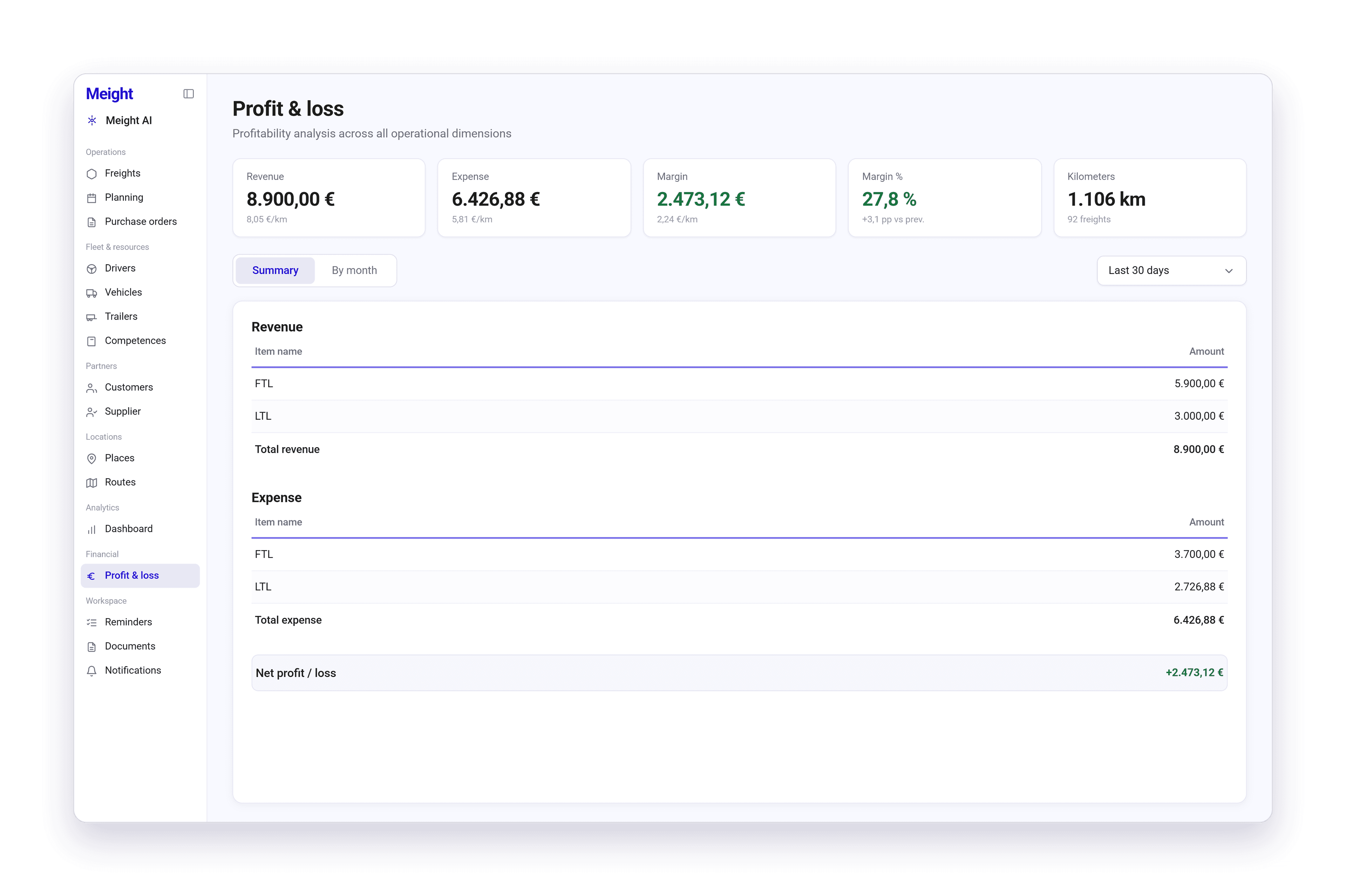
Go to Financial → Profit & loss. The page opens on the Summary view, covering the last 30 days.
Check the tiles
The five tiles at the top give you revenue, expense, margin, margin percentage, and kilometres for the selected period.
Go through the revenue and expense items
The card below the tiles holds a Revenue section and an Expense section. Each one lists its items under an Item name column and an Amount column, and closes with a bold Total revenue or Total expense row.
Check the net result
The Net profit / loss row at the bottom of the card is the revenue total minus the expense total for the selected period. A negative result is shown in red.
A figure that cannot be computed shows as a dash instead of a zero, so a missing figure is never read as a real zero.
How to change the period
Open the period selector
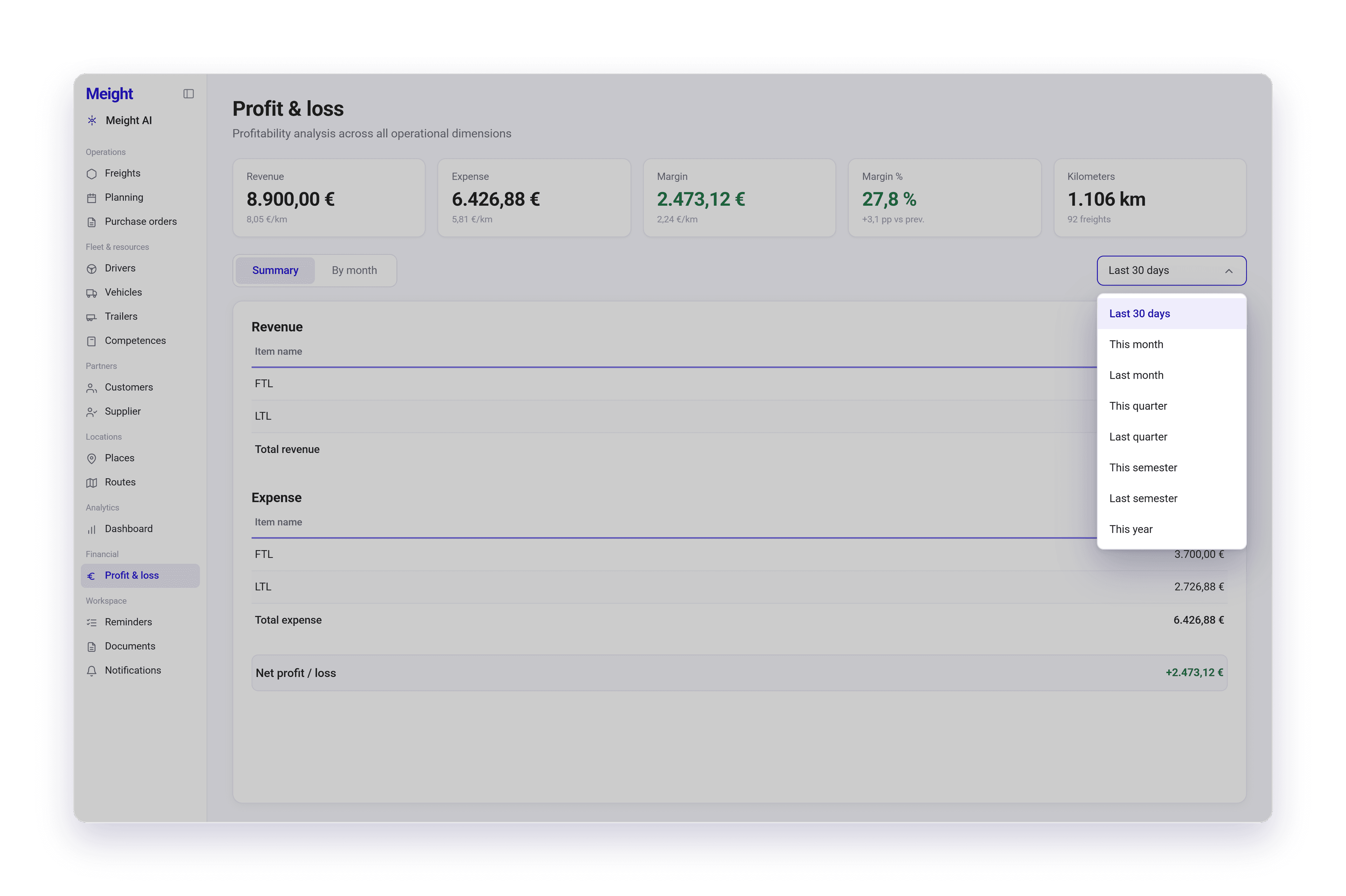
On the Summary view, the selector to the right of the tabs reads Last 30 days. Select it.
Pick a preset
The selector lists nine options: Last 30 days, This month, Last month, This quarter, Last quarter, This semester, Last semester, This year, and Custom. Selecting a preset refreshes the tiles and the statement card, and the selector then reads the preset you picked.
Or set your own range
Select Custom. A calendar opens with the tabs Fixed, Since, and Last, a start date field, an end date field, a month grid, and the buttons Clear and Apply.
Apply the range
Pick the range you want and select Apply. The selector then reads the range itself, for example Jul 20, 2026 - Aug 20, 2026, and the figures refresh to it.
Clear it when you're done
Select Clear to discard a custom range. The period returns to Last 30 days.
A profit and loss period covers at most 366 days. If you apply a longer range, the card shows the message A P&L period covers at most 366 days. Pick a shorter range. and no figures load until you choose a shorter range.
How to see a full year month by month
Switch to By month
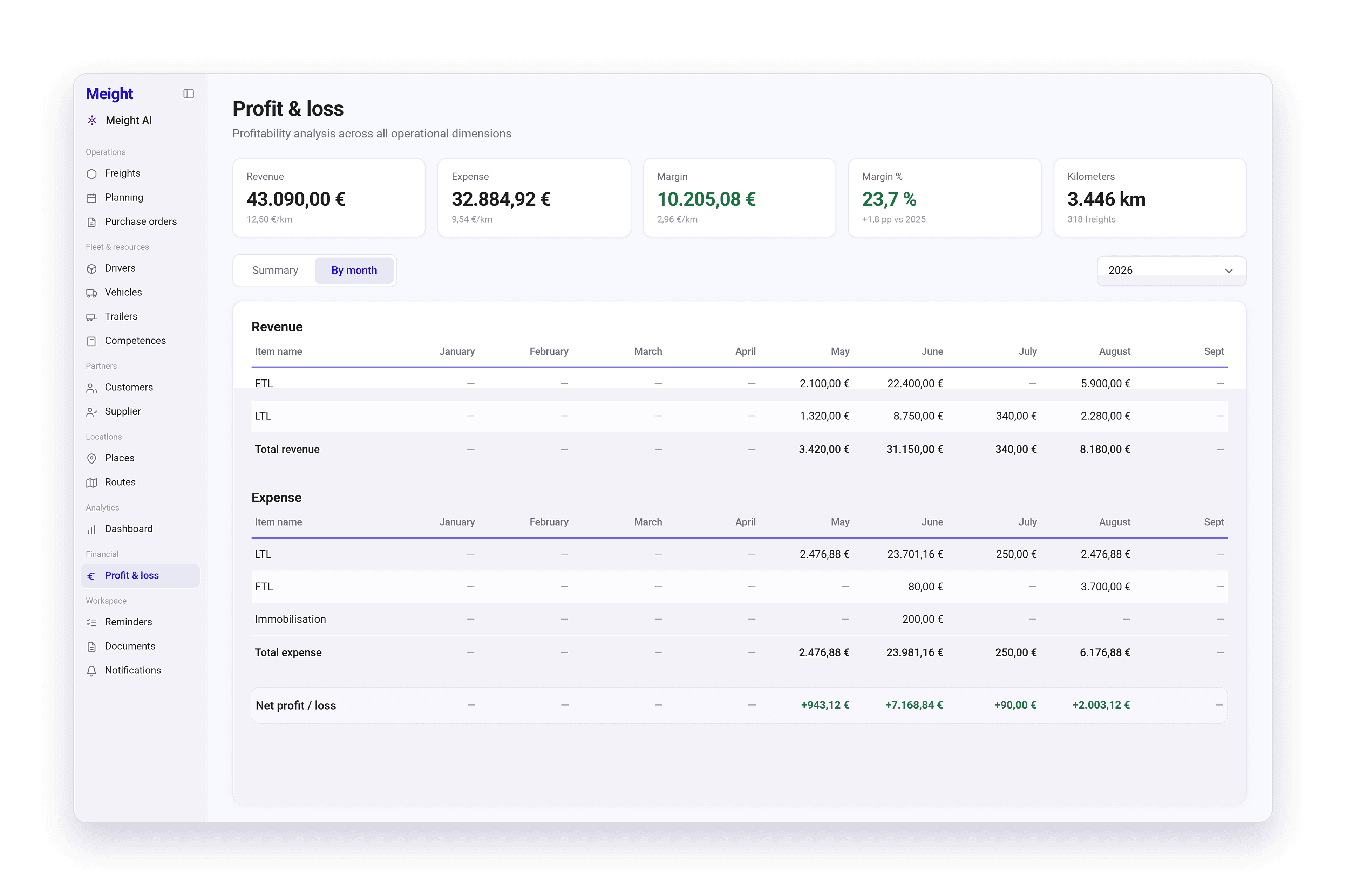
Select By month. The card now covers a full calendar year instead of a single period.
Pick the year
A year selector sits where the period selector was. It goes back four years, so 2026 down to 2022.
Read across a row
Every revenue and expense item has its own row, with a column for each month and a Total at the end.
Check the net result
The Net profit / loss row at the bottom gives the result for each month, and the result for the year in the Total column.
A month where an item had no activity shows a dash, not a zero.
Only final invoices count
A customer or supplier invoice only enters the profit and loss statement once it reaches its final state. Anything still at an earlier stage is not in these figures, so a period can keep changing as its invoices are finalised.
Why does this matter for your operation?
Money comes into the operation as revenue and leaves it as expense. What sits between the two is the margin the whole business runs on, and for most carriers that number only becomes clear weeks after the month has closed.
The profit and loss statement shows it without waiting for the accounts to close. Choose any period up to a year, or lay a full year out month by month, and you have the revenue, the expense, and what is left between them, item by item.