
Dispatch Planning: building tours from your freights
See who's free, build tours on the Planning board, and change them when plans change.
What you'll learn from this guide
- Finding free drivers, vehicles and trailers
- Building tours on the Planning board
- Planning a freight from the Freights list
- Taking a task off a tour
What is it used for
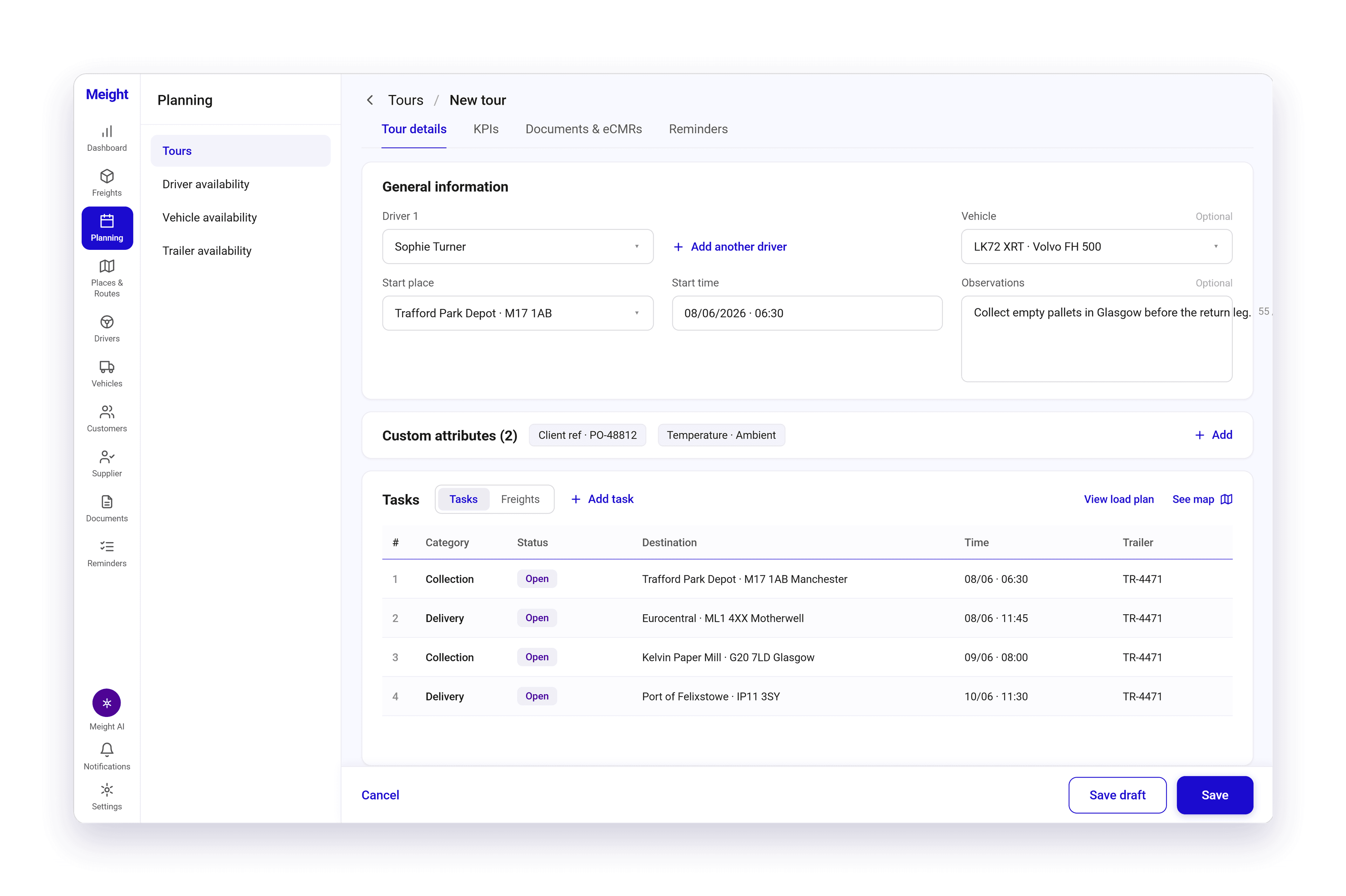
The Planning board is where you plan your freights. Your drivers are on the side and the days are across the top, so you can see each driver's work day by day.
You plan work in tours. A tour is a block of work for a driver: who drives, which vehicle, where and when they start, and the freights and stops they cover. You can add a second driver if needed.
You use the board when new freights come in as Unplanned, when you plan the day or the week, and when you need to move work to someone else.
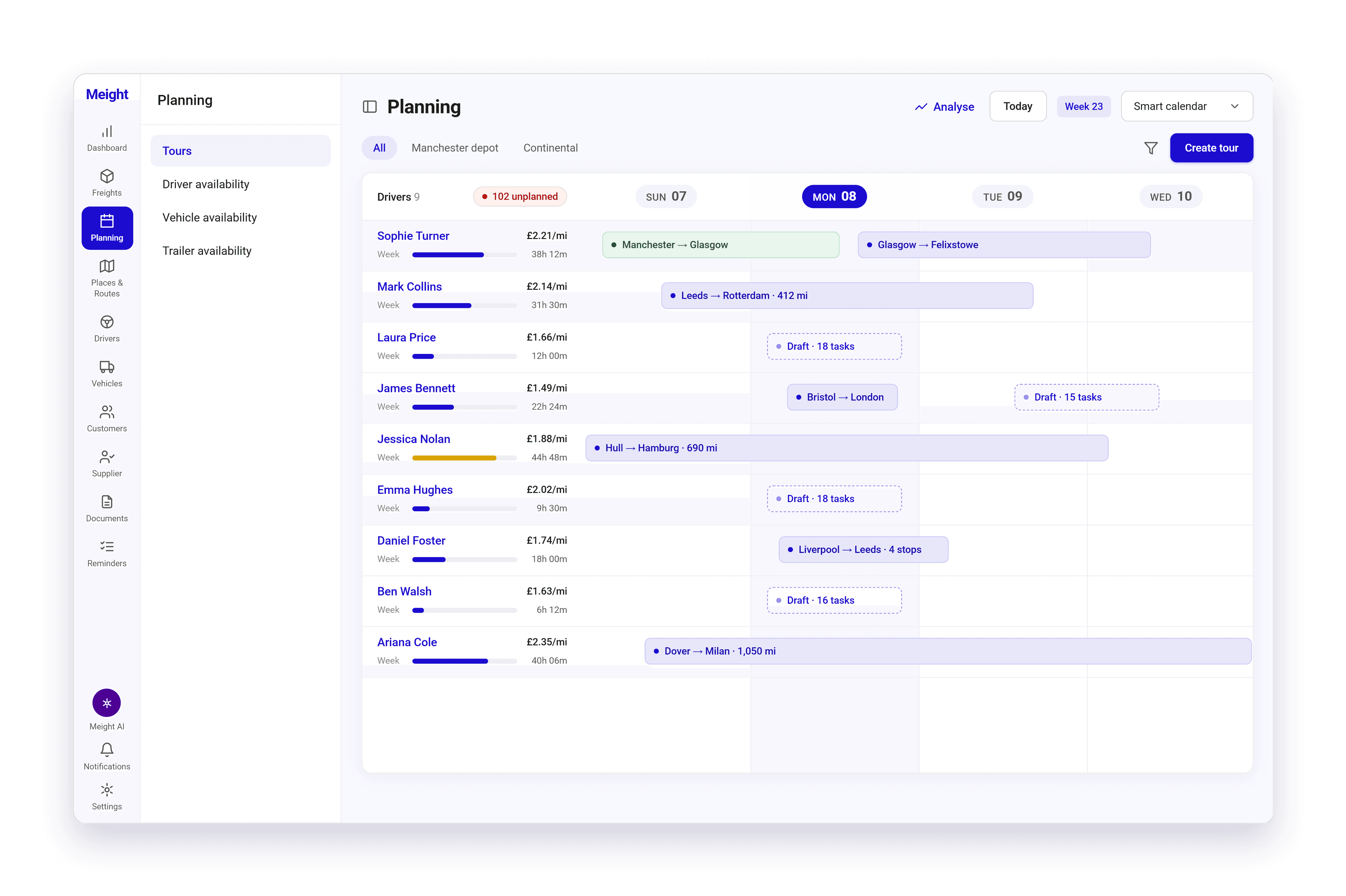
Checking driver, vehicle and trailer availability
Next to the Planning board you'll find views that show who and what is free each day. A driver shows as Available, Unavailable or On rest, with their driving hours for the day, the week and the fortnight beside them.
Open Planning
It's in the main menu on the left.
Select Driver availability, Vehicle availability or Trailer availability
They sit in the sub-menu, under Tours.
Pick the day
Use the date at the top of the list to look at another day.
It's worth checking here before you build tours, and any time you need a free driver or vehicle or want to spot a double booking.
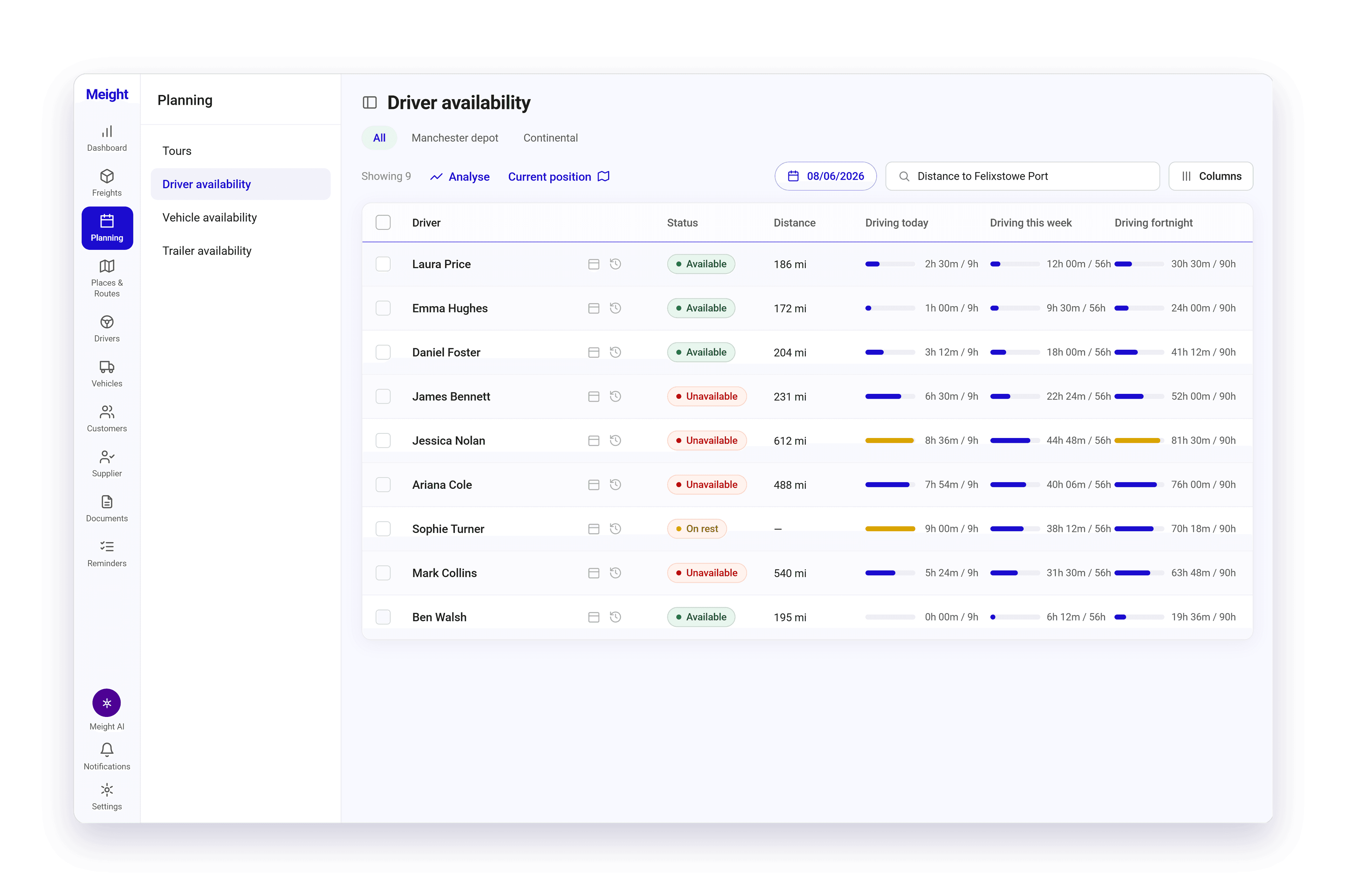
Creating a tour on the Planning board
Open Planning
Start on the Tours view.
Select Create tour
The button is at the top right of the board.
Pick the driver
Under General information, choose Driver 1. If two people are driving, select Add another driver.
Add the vehicle, start place and start time
Fill these in if you know them. Vehicle is optional, so you can come back to it.
Add the work
Under Tasks, select Add task to add freights and stops. You can switch between Tasks and Freights to see either.
Save the tour
Select Save, or Save draft if you want to finish it later.
The tour now shows on the board under the driver and day you picked. Its freights are no longer Unplanned.
On the board you can move between weeks, select Today to jump back to the current day, or switch to the Smart calendar view.
Planning a freight from the Freights list
You can also plan a freight without opening the Planning board.
Open Freights
Find the freight you want to plan.
Select the three-dots menu on the freight
It's at the end of the row.
Select Plan
The freight goes onto a tour.
The freight goes onto a tour and is no longer unplanned.
Removing a task from a tour
Removing a task deletes it for good, so double-check you have the right one. If you only want to move it to another tour, don't remove it. The freight stays in Planning, so you can plan it again.
Open Freights and find the freight with the task
Filters and search help here.
Select the eye icon to open the preview panel
It's on the freight's row.
Select View route
This opens the tour the task belongs to.
In the Tasks panel, select the pencil icon
This lets you edit the tasks.
Select the task, then its three-dots menu
Check it is the right one before you go on.
Select Remove from this route
The task is taken off.
Select Save
Nothing is removed until you save.
The task is gone from the tour and the freight. Everything else on the freight stays as it was.
Why does this matter
Dispatch planning depends on current information about drivers, vehicles, trailers and freights. When availability and assignments are tracked separately from the schedule, scheduling conflicts are harder to catch before the work starts.
The Planning board brings drivers, days and tours into one view, so capacity and gaps are visible across the week. The availability views show which resources are free before a tour is saved, which means the schedule reflects work the team can carry out.
Because changes are made on the same board, the plan stays current as new freights arrive and tasks are adjusted. Dispatchers and the rest of the team work from one schedule and can track progress against it.