
Driver Compensation: reviewing and approving work day logs
Meight calculates each driver's daily compensations from their contract. You review, adjust and approve them before they reach the payslip.
What you'll learn from this guide
- What a work day log is and what it contains
- How to read the compensation calendar and a day's panel
- How to correct, approve and mark a work day log for review
- How to handle days without a log
- How to set up your drivers to get started
What is it used for
Driver compensation variables are the part of a driver's pay that changes from day to day, such as daily allowances and extras. The amount depends on what the driver did that day and on the rules in their employment contract.
Meight keeps those rules in each driver's contract and calculates the amount for every working day. Your team reviews the result, adjusts it where needed and approves it. Approved days feed the driver's payslip.
You find it in Drivers › Compensation.
How the work day log works
Everything starts with the work day log. Meight creates one per driver per day from telematics and planning data. The data is updated every morning and reflects the previous day.
Each log holds two sets of information:
- Daily work details — tour, start time, end time, total time, distance, route, weekday, public holiday, overnight stay away (national), overnight stay away (international) and hotel night.
- Compensations — the payslip items from the driver's contract, each with a quantity and a unit price. The log shows the total amount for the day.
Work day log statuses
Every log has a status:
- Draft — Created or calculated by Meight and not reviewed yet. You can still edit it.
- Pending approval — Waiting for a decision.
- Approved — Reviewed and ready for the payslip.
- Rejected — Not approved. If someone edits it, it goes back to Draft.
- Final — Included in a processed payslip. This status is set automatically.
The calendar also shows Absence for days when the driver is away, such as holidays, and Marked for review for logs with an open warning.
Reading the compensation calendar
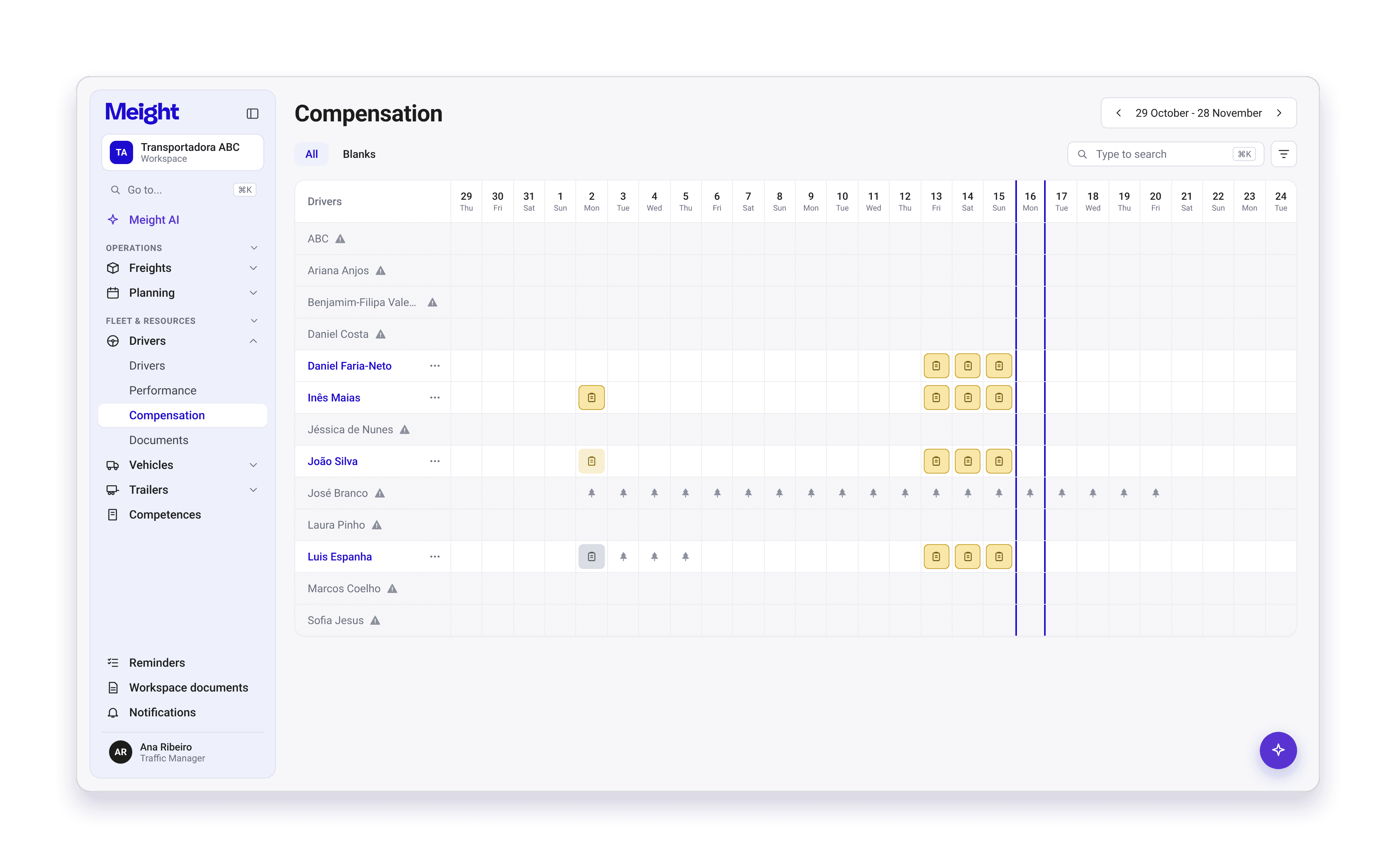
The calendar shows all your drivers for the month on one screen. Drivers are in the rows and the days of the month are in the columns. Each cell shows the status of that day's log, with its own colour and icon, so you can see what still needs approval.
Absences appear in the same calendar, and a log marked for review shows a flag icon. You can filter, search and save views.
Opening a work day log
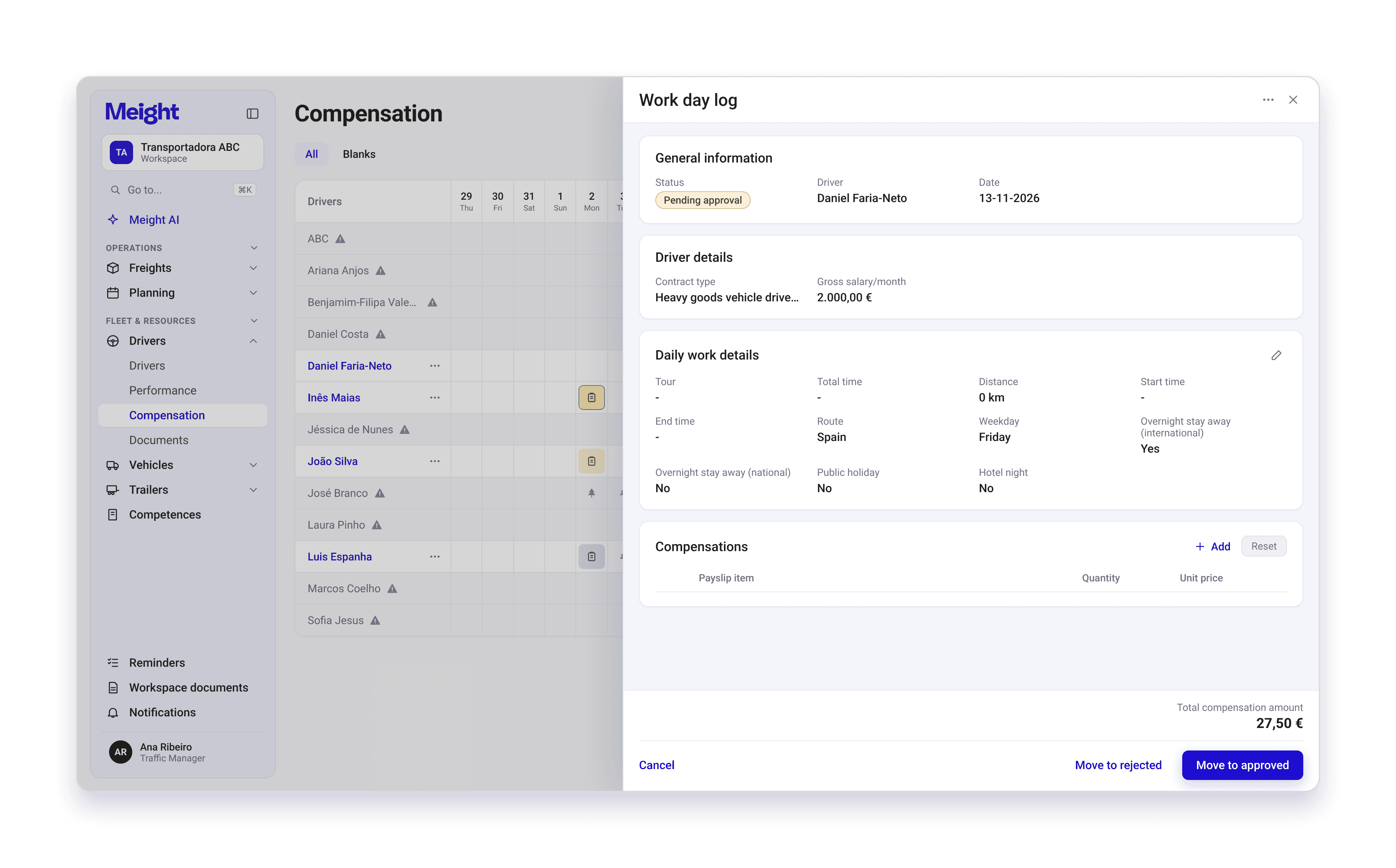
Click a log in the calendar to open its panel. The panel shows:
- Daily work details — what the driver did that day, taken from telematics and planning.
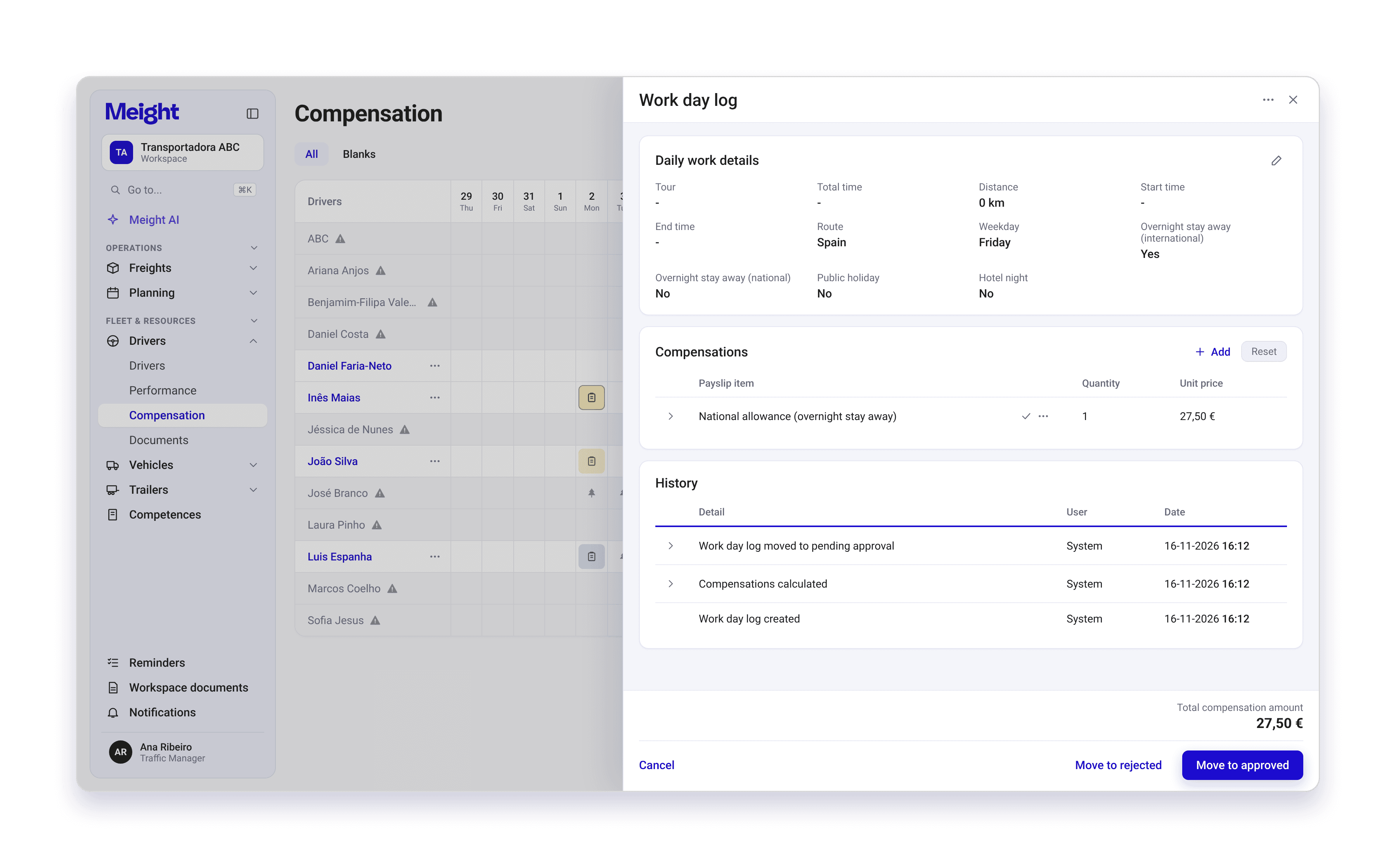
- Compensations — each payslip item with its quantity, unit price and actions to edit and validate the price. The footer shows the total compensation for the day and the actions available for the current status.
- General information, Driver details and History, which records everything done on the log.
Correcting compensations
You correct a day from the compensations card in the panel. These actions are available while the log is in Draft, Pending approval or Rejected. Once approved, the log is locked.
- Adding an item — choose a payslip item from the driver's contract and enter the quantity. Each item can be added once per day.
- Deleting an item — if Meight calculated the item, it comes back the next time the day is recalculated.
- Validating the price — compare the calculated price with a custom price and see how each variable contributed to the amount. A custom price is marked as edited.
- Resetting — discards everything added or edited by hand and keeps only the items Meight calculated.
Approving a work day log
A log moves through its statuses from Draft to Pending approval to Approved. When the payslip is processed, it moves to Final automatically. Meight asks you to confirm every status change.
Three rules apply:
- You can only approve a log once the day has ended.
- You can't approve a log marked for review until the mark is removed.
- An approved log can go back to Pending approval or be rejected, as long as it isn't on a payslip yet.
Marking a work day log for review
Mark a log for review when something needs attention before approval.
Open the log's panel.
In the panel menu, choose Mark for review.
Enter the reason.
The calendar shows a flag icon on that day, and the log can't be approved until the mark is removed.
Meight also marks logs for review on its own when it detects a problem: an error in a formula, planning changed after the log was approved, or an absence that overlaps an approved day.
Creating a work day log manually
When a day has no log, you can create one yourself.
Click the empty day in the calendar.
Choose Create work day log, or Add absence to record an absence.
Choose Create as draft or Create as approved.
Create as approved is only available for past days.
You can't create logs for future days. The driver needs employment contract details set up first.
Asking Meight AI
You can also ask Meight AI about driver compensations in plain language. For example:
- “What was [driver]'s compensation on [date]?”
- “Create this driver's contract based on the FECTRANS annex.”
- “Which days this month are pending approval?”
- “Why does this day have this allowance?”
Getting started
Gather the contracts
Collect the employment contracts for all your drivers.
Set up each driver
In each driver's profile, add the employment contract details and the payslip items. Without them, Meight can't create work day logs.
Review and validate
Open the calendar, review a few calculated days, adjust what's needed and validate them before approving.
Why does this matter for your operation?
Variable pay is usually worked out at the end of the month by cross-referencing telematics, planning and contract rules in a spreadsheet. That work is slow, and the result is hard to check when a driver questions an amount.
When the amount for each day is calculated from the same data used to plan the work, payroll starts from figures that are already reviewed. Corrections happen on the day they belong to, with a record of who changed what. When a driver questions an amount, the log for that day shows how it was reached.