
Accounts Receivable: managing customer financial documents
Issue, correct and track the documents you send customers in one place, and always know what each customer owes.
What you'll learn from this guide
- What the four types of financial document are for and the stages each one moves through
- How the sequence of a document decides whether it's communicated to the tax authority
- How to create an invoice, issue one from a freight, and send it to your customer
- How to record payments, correct invoices, and cancel or delete documents
- How to export your documents and check what a customer owes
What is it used for
When you bill a customer, you need to issue the invoice, record what they pay, correct anything that was wrong, and keep track of what they still owe.
Accounts Receivable is where you handle all of this. It holds every invoice, credit note, debit note and receipt you issue to customers, so the full billing history of each customer stays together.
Use Accounts Receivable to invoice customers for freights or other items, record their payments, correct final invoices, and export statements. You'll use it whenever you bill a freight, when a customer pays, or when you want to check what's owed.
The four types of financial document
- An invoice bills a customer for freights or other items. You can create one by hand or issue it from a freight.
- A credit note lowers the open amount of a final invoice, for example after a discount or a returned charge.
- A debit note raises the open amount of a final invoice, for example for an extra charge that was missing from the invoice.
- A receipt records a customer payment against a final invoice and lowers what's still open on it.
The stages a document goes through
Every financial document has a state.
- Draft is where a document starts. You can still edit or delete it.
- Final is when you've moved it to final. It's now fixed, and if something needs correcting, you do it with a credit note or a debit note.
- Cancelled is for a final document you've cancelled. You give a reason when you do.
Every document also has a payment status: Unpaid, Partially paid, Paid or Overdue. The payment status follows the open amount of the document, which changes as receipts, credit notes and debit notes are added. An invoice only becomes Paid when the full amount has been received.
How the sequence decides what's communicated
Each financial document is numbered from a sequence, and it's the sequence, not the customer, that decides whether the document is communicated to the tax authority.
- A document from a communicating sequence is communicated to the tax authority through the issuing channel, and its PDF carries the fiscal marks your tax authority requires (for example, the ATCUD code, SAF-T hash and QR code for Portugal).
- A document from a non-communicating sequence is numbered in Meight without being communicated, and its PDF carries no fiscal marks. Use a non-communicating sequence for customers you invoice in another system.
Documents from both kinds of sequence count toward the customer's balance. The Invoice externally setting on a customer no longer decides how that customer is invoiced.
Where to find them and what's in the list
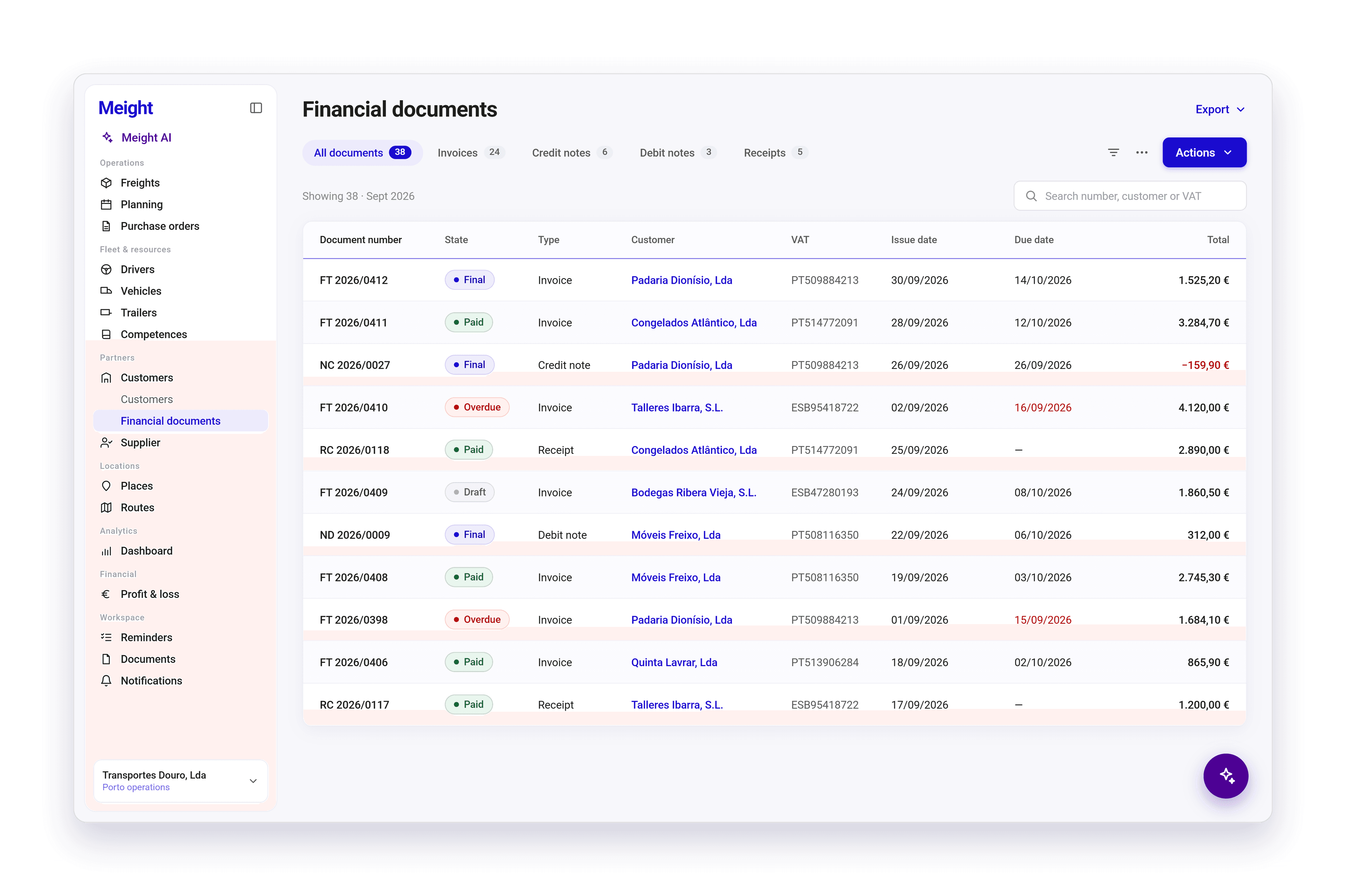
You'll find the list under Customers → Financial documents, which replaces the previous Invoices area. It shows each document's number, state, type, customer, VAT, issue date, due date and total. Overdue documents are labelled in the Due date column.
From the list you can:
- Show one type of document with the All documents, Invoices, Credit notes, Debit notes and Receipts tabs
- Find a document by number, customer or VAT with the search box
- Filter the list with the filter icon, and choose the layout and columns from the three-dots menu
- Create a new invoice, credit note or debit note from Actions
- Export your documents or the SAF-T file from Export
How to create an invoice
Open Financial documents
Go to Customers → Financial documents. The list opens.
Create a new invoice
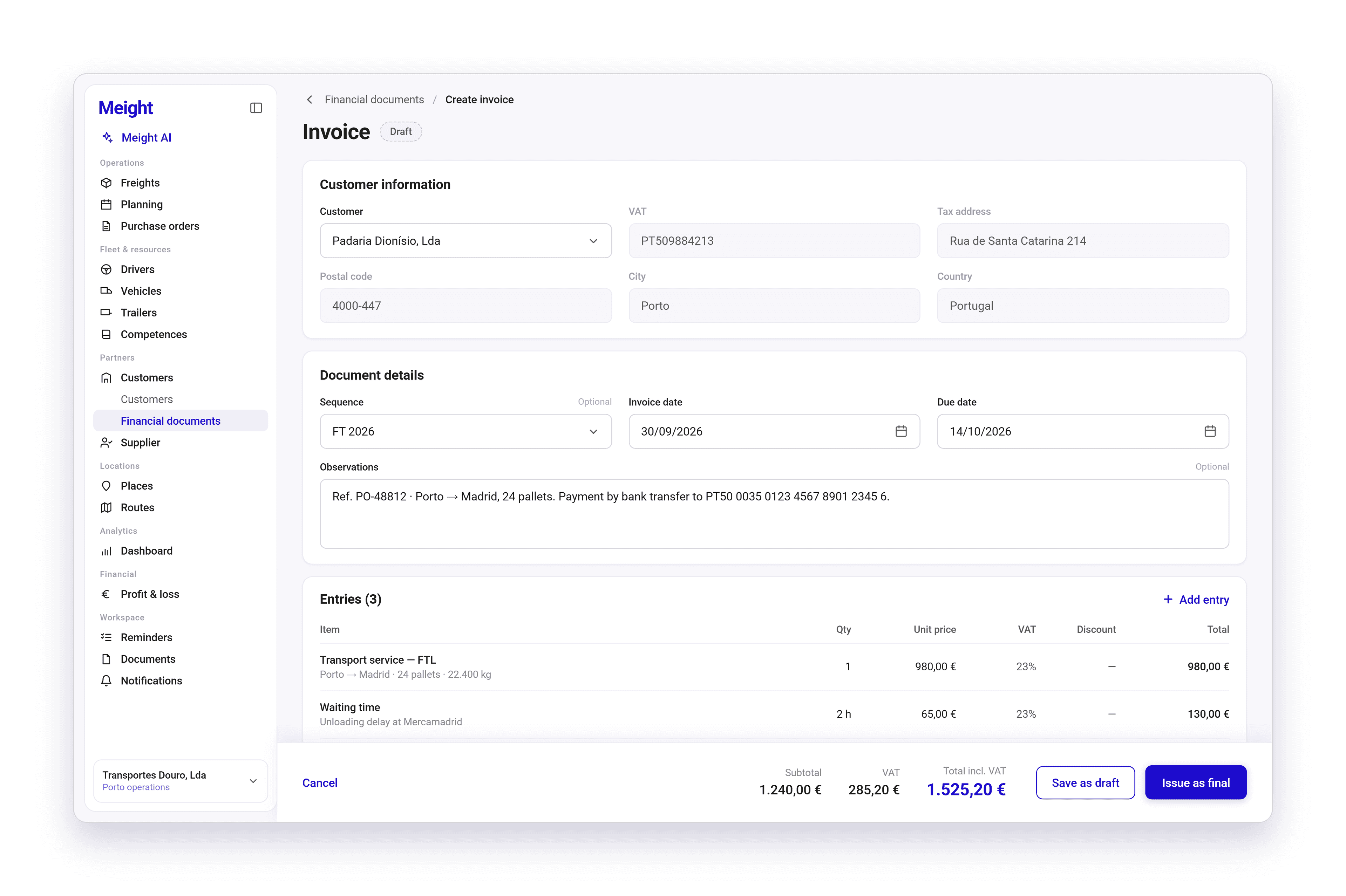
Select Actions, then Create new invoice. The Create invoice page opens with the Customer information, Document details and Entries sections.
Pick the customer
Under Customer information, choose the customer. The VAT, tax address, postal code, city and country are filled in automatically.
Add the document details
Under Document details, choose the sequence, check the invoice date and set the due date. If you only have one sequence, it's already selected. Add observations if you need to.
Add the entries
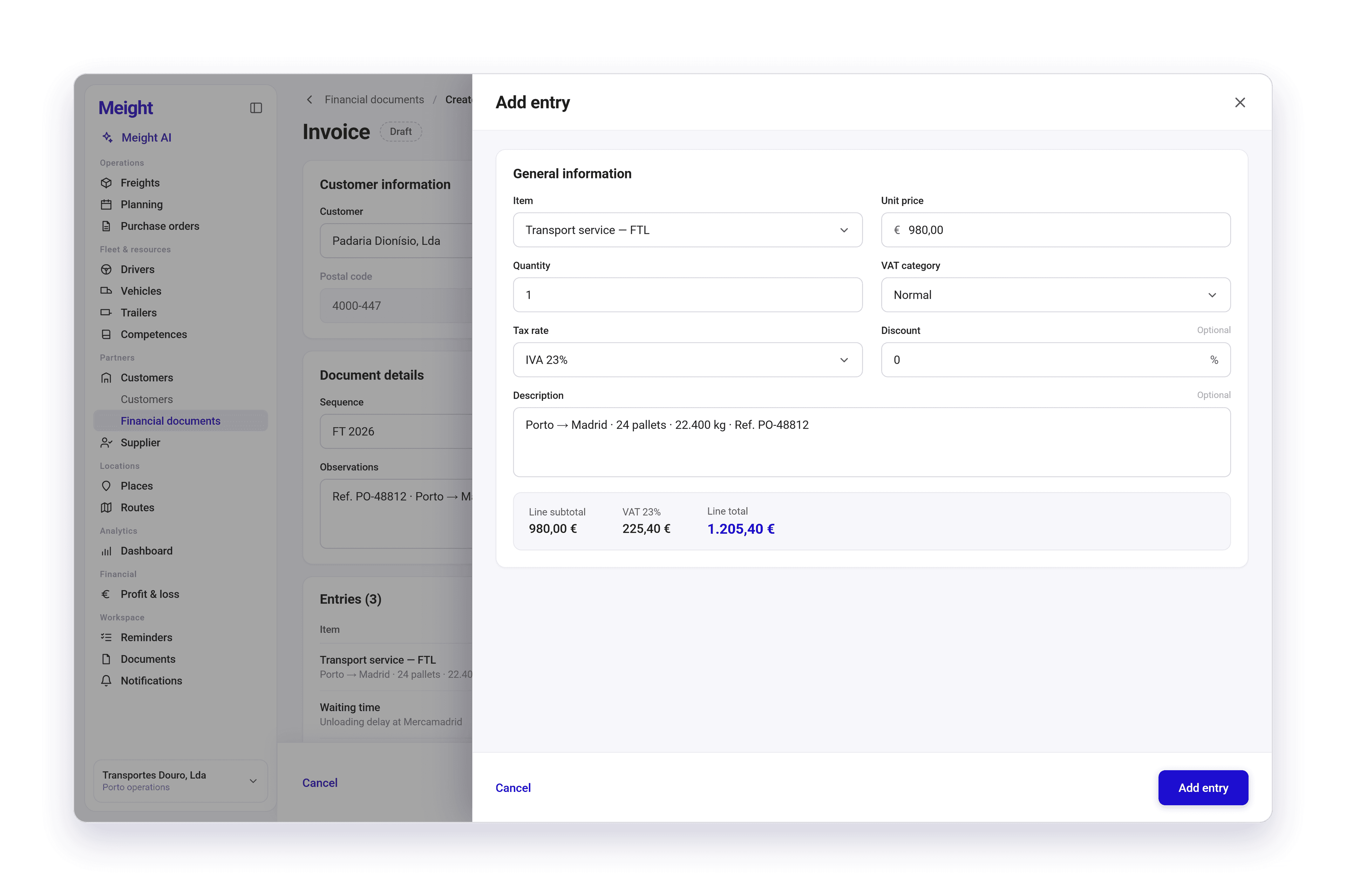
Under Entries, select + Add entry. In the Add entry panel, choose the item, enter the unit price and quantity, and pick the VAT category and tax rate. Add a discount and a description if you need to, then select Add entry. The Subtotal, VAT and Total incl. VAT update as you go.
Create the invoice
Select Save as draft to keep an invoice you can still edit, or Issue as final to issue it straight away. Select Cancel to leave without saving.
How to issue an invoice from a freight
Open the freight
Go to Freights and open the freight you want to bill.
Issue the invoice
Select Issue Invoice. Meight creates a draft invoice for the freight in Financial documents.
Check it and move it to final
Open the draft from the freight's Related documents or from the Financial documents list, and move it to final once it's correct.
The freight's state follows its invoice. A freight with no invoice is Completed, a freight with a draft invoice is Invoiced (draft), and a freight with a final invoice is Invoiced. If the invoice is cancelled, the freight moves to its next invoice or back to Completed.
New freights no longer get the Invoiced (external) state. Freights that were invoiced externally before this change keep it.
How to finalize and send a document
Open the document
In the Financial documents list, select a document. It opens with the Properties and Document preview tabs, and Document preview shows the PDF.
Move it to final
On a draft, make any changes to the details or entries, then select Move to final. A confirmation opens with Reason to move to final state. Select Yes, confirm.
Send it by email
On a final document, open Other actions and select Send email. Choose at least one recipient, add more with Add email if you need to, and select Send. Select Skip email to close without sending.
Download the PDF
Under Other actions, select Download PDF on a final document, or Download on a draft.
Record a paper copy
If you also sent a final invoice on paper, set the Physically sent date under Document details.
The Related documents section of an invoice shows the receipts, credit notes and debit notes linked to it, with their Total, VAT, Total + VAT and issue date.
How to issue a receipt
You can issue a receipt for an invoice that's Final and still has an amount open. You also need write access to financial documents.
Open the invoice
Open a final invoice from the Financial documents list and select Issue receipt. You can also select Issue receipt from the three-dots menu on the invoice's row. The receipt page opens.
Check the document details
Under Document details, check the sequence and the document date.
Add the payment details
Under Payment options, choose the payment method, set the payment date and select the bank account that received the payment. The payment methods are Cash, Cheque, Debit card, Credit card, Bank transfer, Direct debit, Payment reference and Other.
Enter the amount paid
Under Payment summary, check the pending amount and enter the amount paid. Meight warns you if the amount paid is higher than the invoice total.
Create the receipt
Select Save as draft or Issue as final.
How to issue receipts for several invoices
When a customer pays several invoices together, you can issue all the receipts in one go. The invoices need to be Final, have an amount still open, and belong to the same sequence.
Select the invoices
In the Financial documents list, select the final invoices the customer paid.
Start the receipts
Select Issue receipt in the selection bar. The receipt page opens with one line for each invoice.
Add the shared details
Set the sequence, document date and payment options once. They apply to every receipt.
Enter the amounts
Under Payment summary, enter the amount paid for each invoice.
Create the receipts
Select Save as draft or Issue as final. Meight issues a separate receipt for each invoice.
If your selection mixes sequences, includes an invoice that isn't final, or includes one with nothing left to pay, Meight tells you which rule it breaks so you can adjust it.
How to correct an invoice with a credit note or debit note
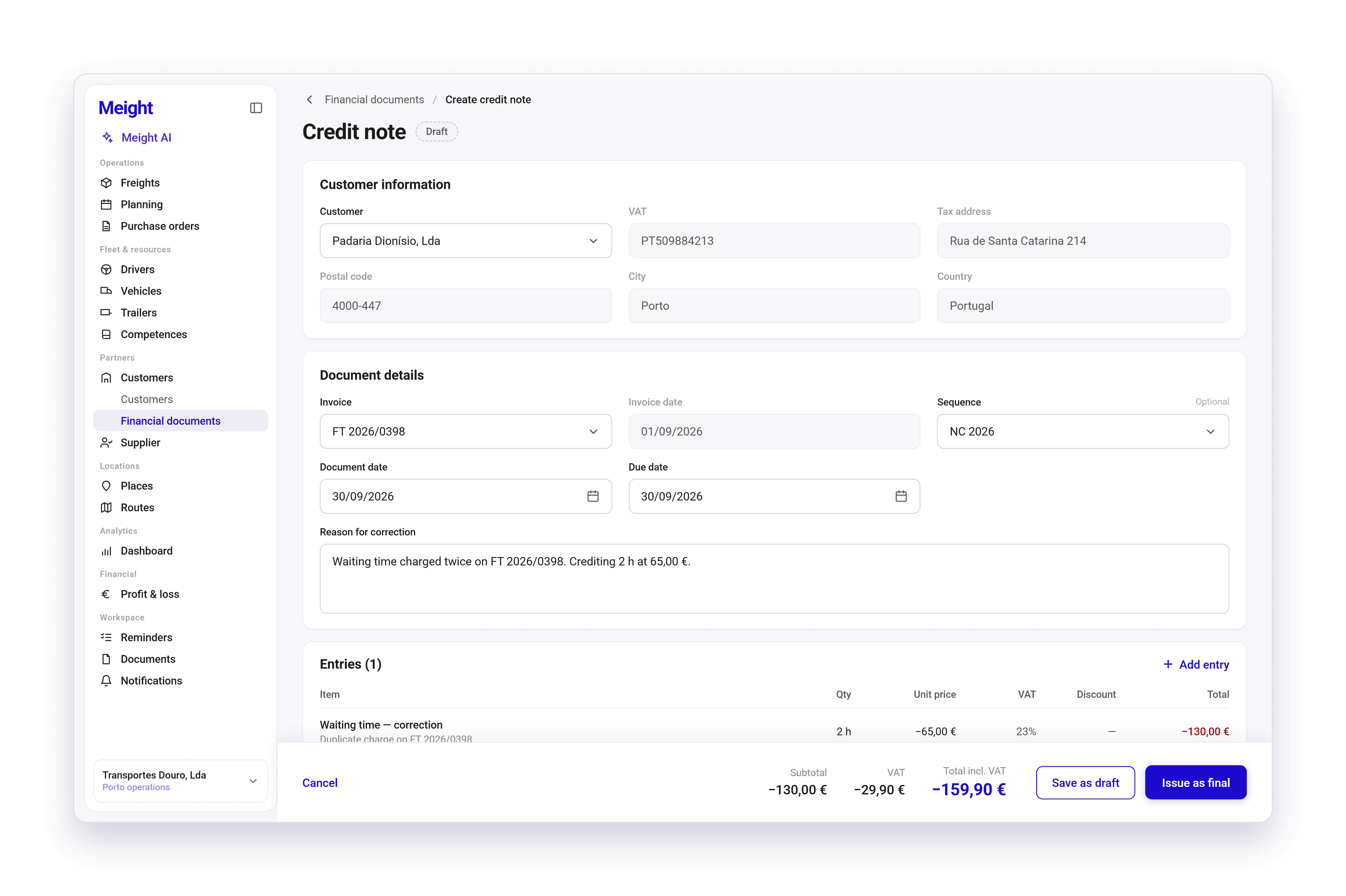
Every credit note and debit note is linked to the final invoice it corrects. A credit note can't be higher than the amount still open on the invoice, and Meight warns you if it is. A debit note starts with the invoice's entries already filled in.
Start the note
In the Financial documents list, select Actions, then Create new credit note or Create new debit note. You can also open a final invoice and select Create credit note or Create debit note, which fills in the customer and the invoice for you.
Pick the customer
Under Customer information, choose the customer. Their details are filled in automatically.
Choose the invoice
Under Document details, choose the invoice you're correcting. Its invoice date appears next to it.
Add the document details
Choose the sequence if you need to, check the document date, set the due date, and enter the reason for the correction.
Add the entries
Under Entries, select + Add entry to add a correction entry, or change the entries already filled in. The Subtotal, VAT and Total incl. VAT update as you go.
Create the note
Select Save as draft or Issue as final.
How to cancel or delete a document
Cancelling a final document can't be undone. Once you cancel it, you can't create invoices in the same sequence dated before the cancelled document.
Delete a draft
Open the draft, select Delete draft under Other actions, and confirm. The draft is deleted.
Cancel a final document
Open the final document and select Cancel document. Enter the reason for cancellation, which is required, and confirm. The document's state changes to Cancelled.
How to export financial documents
Open the export
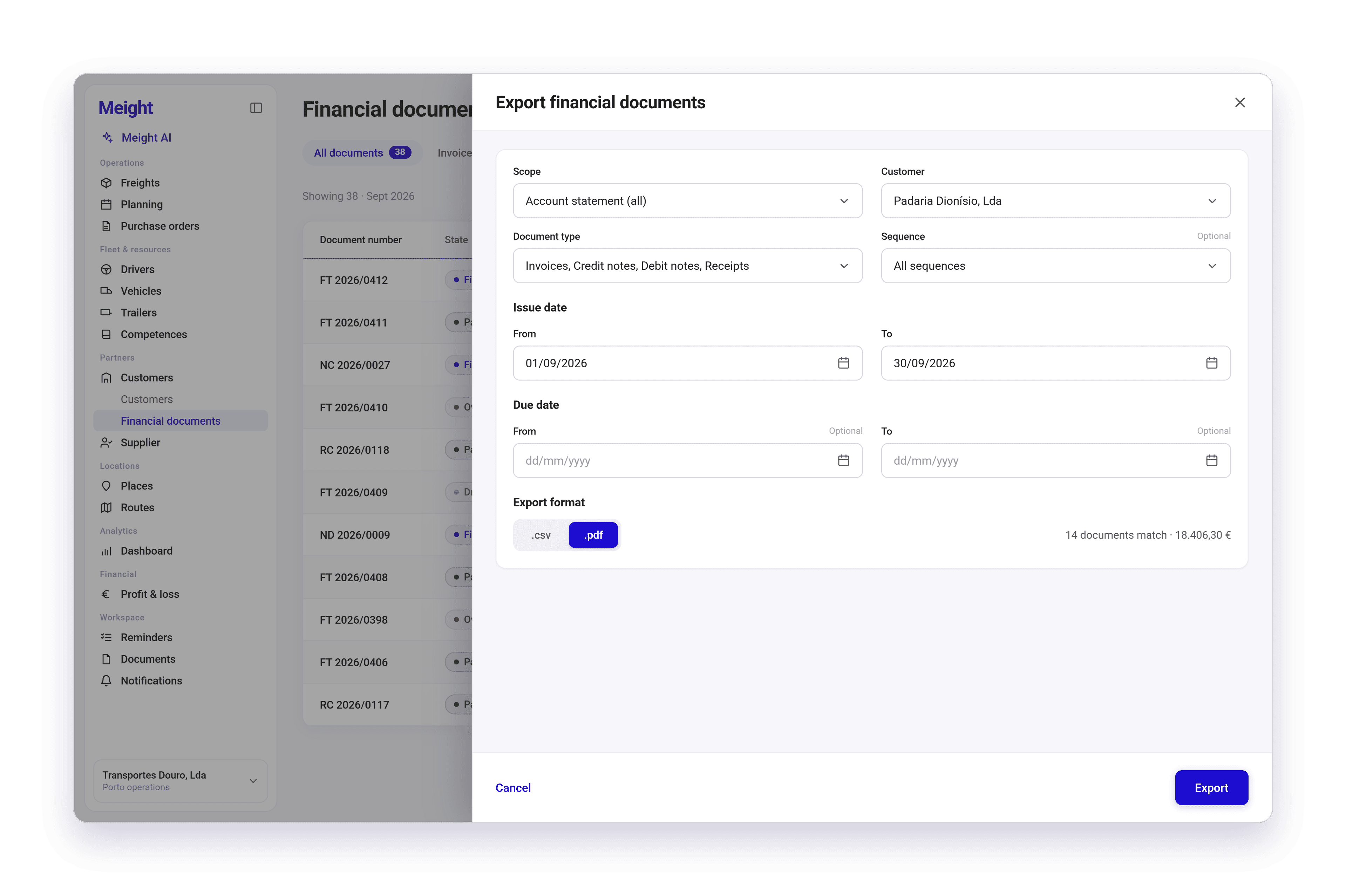
In the Financial documents list, select Export, then Financial documents. The Export financial documents panel opens.
Choose the scope
Pick Account statement (all), Outstanding statement (Pending) or Tax invoice statement (By VAT code).
Narrow it down
Choose the customer and the document type, and the sequence if you need to.
Set the dates
Set the issue date range with From and To. Add a due date range if you need to.
Export
Choose .csv or .pdf as the export format and select Export.
To export your documents for the tax authority, select Export, then Export SAF-T.
How to check what a customer owes
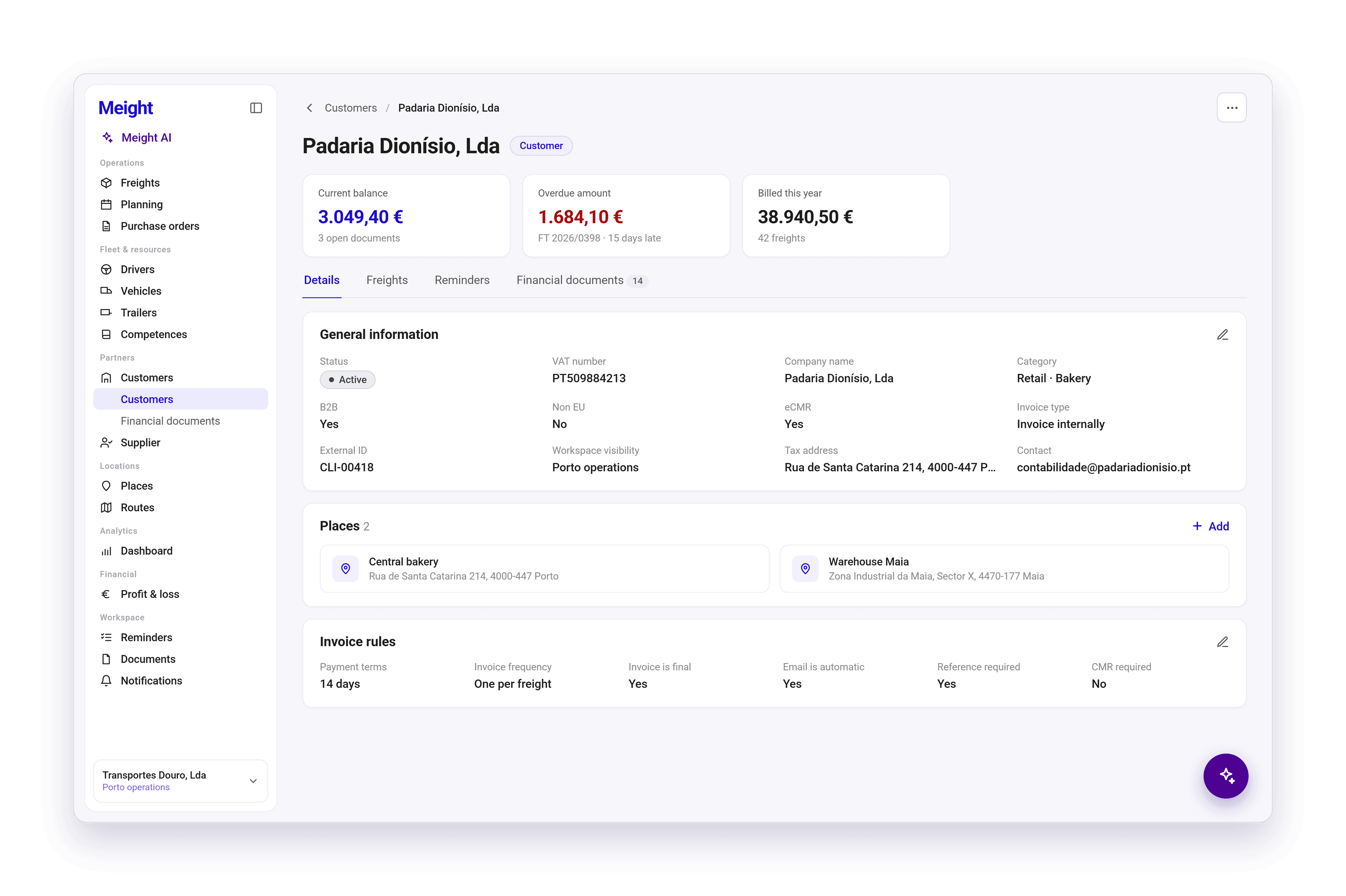
At the top of each customer page, two cards show what the customer still owes across all their financial documents.
Current balance is the total open amount of every final document for the customer. Overdue amount is the part of the current balance that's already past its due date.
Drafts don't count until they're final. Final receipts and credit notes lower the balance, and final invoices and debit notes raise it.
Open the customer
Go to Customers → Customers and select a customer. The Current balance and Overdue amount cards appear at the top, above the Details, Freights, Reminders and Financial documents tabs.
See their documents
Select the Financial documents tab to see every document for that customer. Use Export to export them.
A dash in either card means the customer has no final document with an amount open.
Why does this matter for your operation?
Billing depends on information that is often kept in different places: the freights still to bill, the invoices issued, the payments received and the corrections made. Matching it up takes time, and freights can go unbilled or payments can go unrecorded.
Accounts Receivable keeps this information together. Receipts, credit notes and debit notes stay linked to the invoice they apply to.
Recording payments and corrections takes less time, and the open amount on each invoice stays accurate.
You know how much each customer owes and how much of it is overdue, so you can follow up on late payments sooner and plan for the cash still to come in.